Posts & Zones
Posts are the positions and locations where Safety Team Members are assigned during services and events. This guide covers how to create, manage, and delete posts for your organization.
Admin & Oversight: Both Organization Admins and Oversight leadership can manage posts.
What Are Posts?
Posts represent the physical or functional positions your team covers:
| Example Posts | Description |
|---|---|
| Pastoral Protection | Close protection for ministry staff |
| Service Left | Left side of worship center |
| Service Right | Right side of worship center |
| Foyer / Welcome | Main entrance and greeting area |
| Kids Ministry | Children’s check-in and classrooms |
| Parking Lot | Vehicle traffic and perimeter |
| Connection Point | Visitor services area |
| Attending | System-reserved post for general attendance |
Posts are organization-specific. Define what makes sense for your campus and services.
Accessing Post Configuration
- Navigate to Admin in the sidebar, then click Settings.
- Open the Operations tab and select Posts & Zones.
- The post management screen displays all current posts sorted alphabetically.
Formerly at /admin/posts — that URL now redirects here. Available to Organization Admins and Oversight.
Creating a New Post
- Click Add Post (or the + button).
- Fill in the post details:
| Field | Required | Description |
|---|---|---|
| Name | Yes | Display name for the post |
| Description | Optional | Additional context or instructions for the position |
| Allowed Event Type | Yes | Controls which events can use this post: ALL, SERVICE, PROGRAM, or SPECIAL |
| Location Photo | Optional | A hero image for this post, uploaded via the secure upload system. Appears as a grayscale banner in the AssignmentCard on the mobile On-Duty screen. |
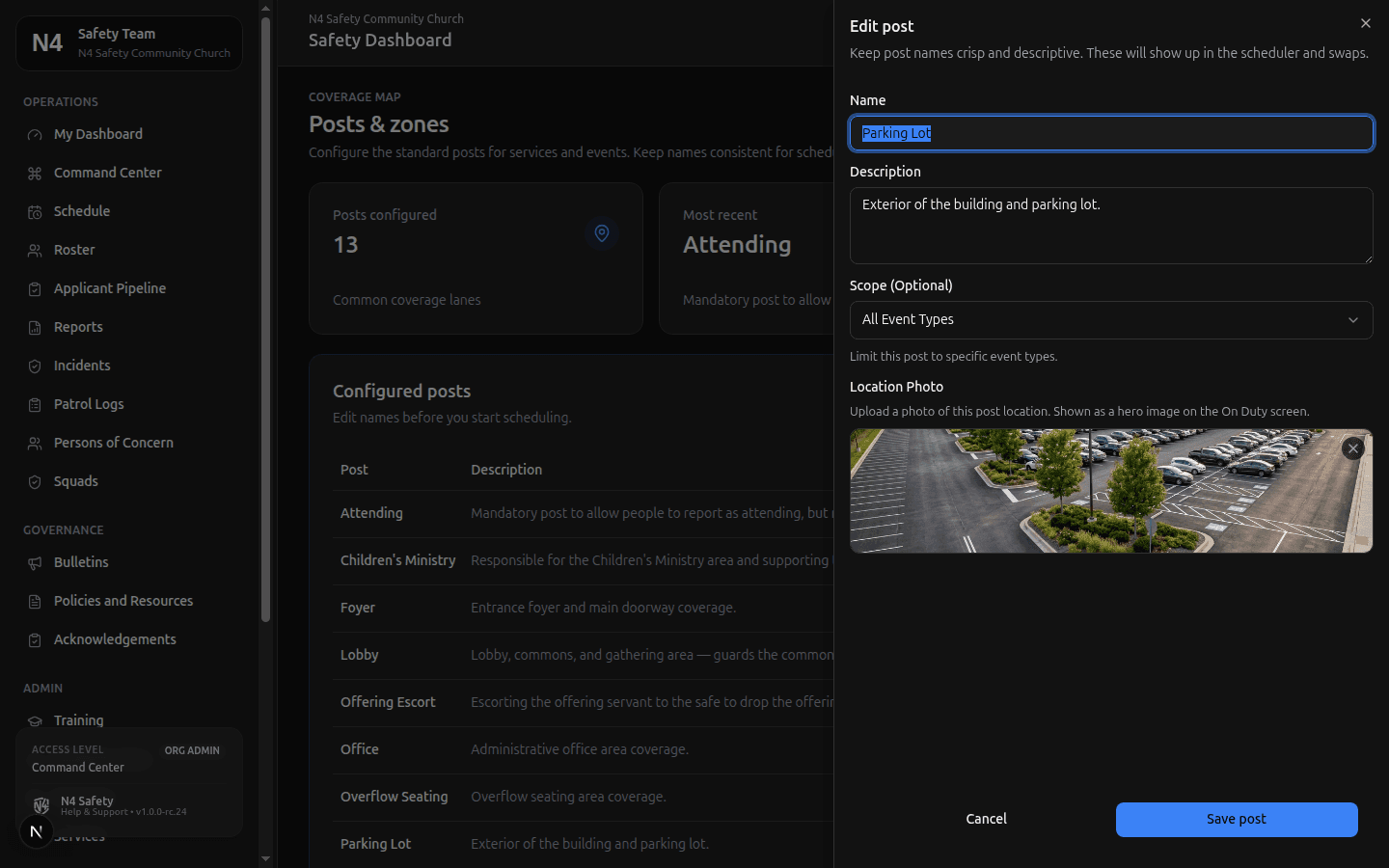
- Click Save to create the post.
The Allowed Event Type field lets you restrict a post to specific kinds of events. For example, a “Stage Monitor” post might only apply to services, while a “Registration Desk” post might only apply to programs. Choose ALL if the post should be available everywhere.
Editing a Post
- Find the post in the list.
- Click Edit (or the pencil icon).
- Modify the name, description, allowed event type, or location photo.
- Click Save.
Renaming a post updates its name everywhere, including past assignments.
The “Attending” Post
The platform includes a protected system post called Attending. This post:
- Is created automatically for every organization
- Cannot be renamed or deleted
- Represents general attendance without a specific assigned position
- Is used when a Safety Team Member is present but not assigned to a particular post
Deleting a Post
If a post is no longer needed, you can delete it. However, there are important restrictions:
- You cannot delete a post that has existing assignments. The platform blocks deletion when any service, event, or schedule references the post. You must first remove all assignments that use the post.
- You cannot delete the “Attending” post. This is a system-protected post.
Deleting a post is permanent. Unlike some operations, there is no deactivation toggle — posts are either created or deleted. Make sure no assignments reference the post before attempting deletion.
All post creation, editing, and deletion actions are recorded in the audit log for accountability.
Post Display Order
Posts are displayed in alphabetical order by name. There is no manual reordering. If you need posts to appear in a specific order, consider using a naming convention with prefixes (e.g., “01 - Pastoral Protection”, “02 - Service Left”).
Assignment Considerations
When configuring posts, consider:
- Coverage Needs — How many Safety Team Members typically cover this post?
- Skill Requirements — Does this post require special training (e.g., armed)?
- Physical Layout — Does your campus layout require specific positions?
- Event Types — Do different services or programs need different post configurations? Use the Allowed Event Type field to control this.
Best Practices
- Use Clear Names — Names should be instantly recognizable to any Safety Team Member.
- Keep Descriptions Updated — Include any special instructions or expectations for each post.
- Regular Review — Audit posts quarterly to identify any that are no longer in use.
- Consistency — Use the same naming conventions across similar posts.
Next Steps
- Service Definitions — Configure recurring services that use these posts.
- Program Management — Set up programs with default post assignments.
- Admin Panel Overview — Return to the full list of admin areas.
Need More Help?
© 2026 N4 Safety. All rights reserved.