Creating a Patrol Log
Creating a Patrol Log is designed to be fast and mobile-friendly, allowing Safety Team Members to quickly record observations while in the field.
Two Ways to Create a Log
| Method | Where | Best For |
|---|---|---|
| Standard Entry | Sidebar → Patrol Logs → + New Patrol Log | Detailed logs after the fact; desktop or mobile |
| Quick Entry from On Duty | /on-duty → Patrol Log button, or Log tab in the mobile BottomNav | Fast field entry while on active duty; auto-links to your session |
Standard Entry
Navigate to Patrol Logs
Select Patrol Logs from the main sidebar.
Start a New Log
Click or tap the + New Patrol Log button in the top right corner.
Fill In the Form
Complete the fields described below.
Submit
Tap Submit Patrol Log. The log appears instantly in the feed for your squad and leadership.
Form Fields
| Field | Required | Description |
|---|---|---|
| Category | Yes | Select the type of observation (e.g., Maintenance Issue, Suspicious Activity, Routine Patrol). Categories are defined by your organization’s admins — up to 6 active categories. |
| Description | Yes | A clear, factual narrative of what you observed or completed. |
| Location / Zone | Optional | Where the observation took place (e.g., “North Gate”, “Sanctuary Aisle 3”). |
| Follow-up Required | Optional | Check this box if the log needs attention from leadership or the incoming shift. This flags it with a red “Action Req” badge. |
| Photos / Attachments | Optional | Upload site photos or relevant documents directly from your device. |
Quick Entry from On Duty (Mobile)
The Quick Entry form is accessible two ways while on an active Duty Session:
- Tap the Log tab in the mobile BottomNav bar on any
/on-duty/*route. - Tap the Patrol Log action button on the main
/on-dutyscreen.
Both paths open the same full-screen entry form. When you submit from this context, the log is automatically linked to your current event and Duty Session — no manual association needed. After submitting, you return directly to /on-duty.
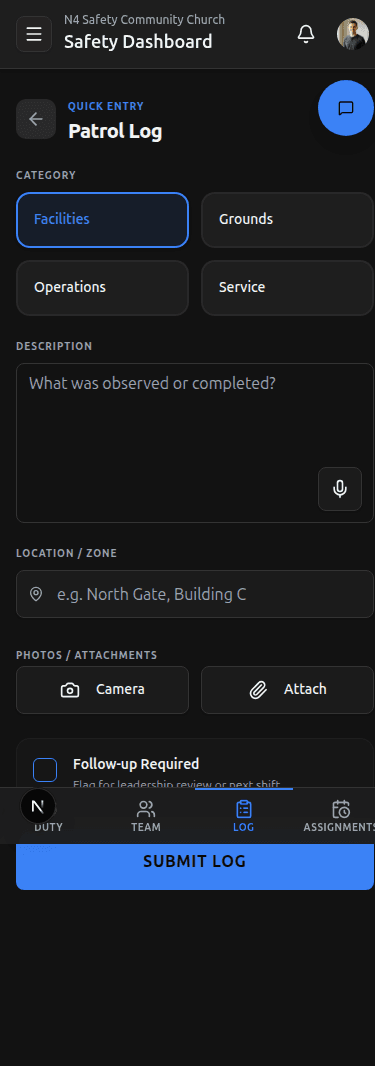
Quick Entry Form Features
Category Tiles — Instead of a dropdown, categories are displayed as color-coded tiles (up to 6). Tap the tile that matches your observation type.
Description — A standard textarea for your narrative. In the bottom-right corner of the description field, a microphone button enables voice-to-text entry:
- Tap the microphone to start recording.
- The button pulses red while recording is active.
- Tap again to stop. The transcript appends to the description field.
- The microphone button is hidden on browsers that do not support the Web Speech API.
Camera Capture — Tap the camera button to take a photo directly from your device camera and attach it to the log.
Attach from Files — Tap the attachment button to select existing photos or documents from your device.
Location and Follow-up — Identical to the standard form: optional zone field and follow-up required checkbox.
Quick Entry logs are automatically associated with the active event. You do not need to select or enter the event manually.
Editing or Updating a Log
Once submitted, any Safety Team Member can add chronological Follow-Up Notes or additional attachments to a Patrol Log by tapping on it in the list to view its details.
This timeline works the same as an Incident Report follow-up feed, keeping all context in one place.
Need More Help?
© 2026 N4 Safety. All rights reserved.