Duty Sessions
A Duty Session represents the time a Safety Team Member is actively on post or officially responding to incidents during a service, event, or program.
N4 Safety organizes your assignments into Duty Blocks. Rather than checking into each individual post or building location, you check in for a continuous block. If you have multiple assignments back-to-back (e.g., Early Service and Late Service) with less than a 90-minute gap between them, the system assumes you are on duty for the entire duration and bundles them together into one Duty Session.
Checking In
To officially assume your post, you must digitally Check In.
When you are within your upcoming assignment’s check-in window (default: 30 minutes before your start time), a prominent amber warning banner will appear at the top of your dashboard.
How to Check In
Open Your Dashboard
Log in to the N4 Safety platform and locate the amber “Report for Duty” banner at the top of your screen.
Tap Check In
Tap or click the Check In button on the banner.
You Are On Duty
The system creates an active Duty Session and brings you to the On Duty page at /on-duty.
Always check in when you arrive on site. Duty Sessions are recorded in your organization’s immutable audit log, establishing your formal presence during any security event or incident report you investigate.
The On-Duty Page (Desktop)
Once checked in, your dashboard banner turns green and reads “You are On Duty.” You also gain access to the dedicated /on-duty page.
Current Assignment Targeting
The On-Duty page acts as your operational map, listing all assignments within your current Duty Block.
- The assignment that corresponds to the current time is highlighted in bright green — instantly showing where you are supposed to be stationed right now.
- Upcoming or completed assignments within your current block appear in a neutral grey state.
Quick Actions
While on the /on-duty page, you have quick actions tied directly to your session:
- On-Duty Checklist — Access recurring task lists tied to your current service (e.g., checking exterior doors before service start). Any on-duty member can toggle any checklist item.
- Patrol Log — Submitting a log from this page automatically links it to your current active Duty Session.
Mobile Layout
On mobile, the /on-duty page uses a purpose-built layout designed for field use.
Screen Sections (Top to Bottom)
| Section | What You See |
|---|---|
| DutyHeader | Your duty block label, check-in time, and a prominent Check Out button |
| ServiceStrip | A horizontally scrollable row of service-time pills — completed (muted), active (highlighted), upcoming (outlined) |
| PreviewBanner | A blue information banner that appears when you are viewing a non-current service time |
| AssignmentCard | Your post name with an optional hero photo displayed as a grayscale banner with gradient |
| ActionButtons | Full-width Patrol Log and Incident Report buttons (minimum 80px height for glove-friendly tapping) |
| OnDutyChecklist | Task items grouped by phase — Pre-Service, During Service, and Post-Service. Any on-duty member can toggle any item. |
| MyPatrolLogFeed | A scrollable feed of your patrol log entries for the current session |
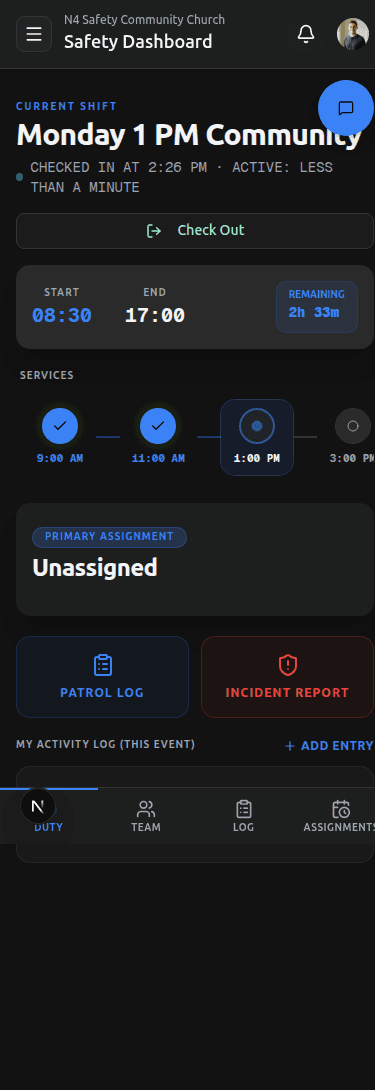
Mobile Navigation (BottomNav)
When you are on any /on-duty/* route on a mobile-sized screen, a fixed bottom navigation bar appears (hidden on desktop at lg:hidden):
| Tab | Route | Visible To |
|---|---|---|
| Duty | /on-duty | All on-duty members |
| Team | /on-duty/team | Squad Leaders, Oversight, Organization Admins |
| Log | /on-duty/patrol-log | All on-duty members |
| Assignments | /on-duty/members | All on-duty members |

Checking Out
When you are relieved of duty or your final assignment ends, Check Out to formally close your session.
Navigate to On Duty
Go to /on-duty — on mobile, it is the Duty tab in the bottom navigation bar.
Tap Check Out
Tap or click the Check Out button in the duty header.
Session Closed
Your final departure time is officially recorded, ending your active session.
If you leave without checking out, the system will automatically close your Duty Session 90 minutes after your final scheduled assignment ends. Your recorded checkout time will reflect the moment the system intervened, which can affect operational reporting. Make a habit of checking out manually.
Need More Help?
© 2026 N4 Safety. All rights reserved.