Roster
The Roster is your central directory of all Safety Team members. It provides contact information, status, compliance tracking, and role assignments at a glance.
Who Can Access the Roster?
| Role | Access Level |
|---|---|
| Safety Team Member | View roster, see contact info |
| Squad Lead | View roster, manage squad members |
| Coordinator | View roster, edit contact info & compliance dates |
| Safety Leadership | Full roster access, manage all member data |
| Organization Admin | Full access, including status changes |
Applicants and public users cannot view the roster.
Summary Cards
At the top of the roster page, three summary cards give you a quick snapshot of your team:
| Card | What It Shows |
|---|---|
| Ready for Duty | Count of members with ACTIVE, RESERVE, or LOA status who are available to serve. |
| Compliance Watch | Members with an expired or missing background check or abuse prevention training. |
| Firearms Authorized | Members who hold a firearms authorization (any authorization type other than NONE). |
The Roster Table
The roster displays your Safety Team members in a table with the following columns:
| Column | What It Shows |
|---|---|
| Member | Avatar, full name, and email address. |
| Status | A status badge (Active, Reserve, LOA, etc.) with a firearms icon if the member is firearms-authorized. |
| Role | A badge showing the member’s role (Member, Squad Lead, Coordinator, etc.). |
| Squad | Badge(s) for each squad assignment. The member’s primary squad is highlighted. |
| Contact | Phone number and email for quick outreach. |
| Readiness | A readiness badge showing compliance status, plus the member’s authorization type. |
| Actions | An Edit link visible to leadership roles for navigating to the member’s profile. |

Mobile view: On smaller screens, roster entries display as stacked MobileCard items rather than a table. Filter controls appear above the list so they remain easy to reach without horizontal scrolling.
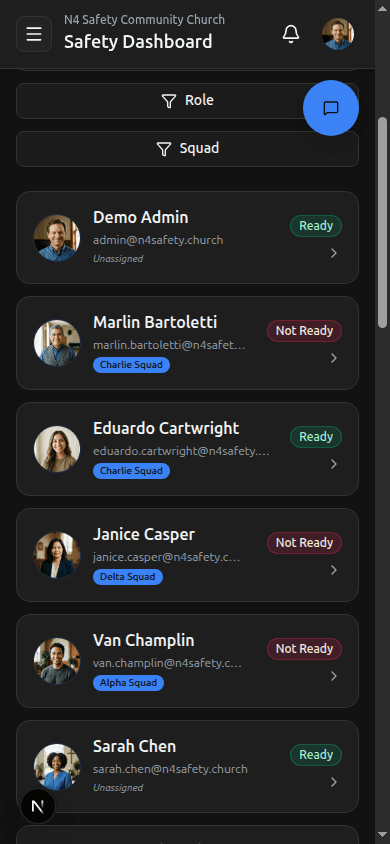
Search and Filters
Search
You can search across first name, last name, preferred name, email, phone number, and squad names. Start typing and the table filters in real time.
Filter Options
The roster provides several filter controls that let you narrow down the table:
- Status Filter — Filter by one or more account statuses, with Select All and Clear options for quick toggling.
- Role Filter — Show only members of a specific role.
- Squad Filter — View members assigned to a particular squad.
- Compliance Watch Toggle — Show only members with compliance gaps.
- Firearms / LEO Toggle — Show only firearms-authorized or law enforcement members.
Your filter selections persist between visits using your browser’s local storage. You will see the same filters applied the next time you return to the roster.
Understanding Readiness Status
The Readiness column uses four color-coded states to indicate each member’s compliance posture:
| Color | Label | Meaning |
|---|---|---|
| Green | Ready | All compliance items are valid and current. |
| Yellow | Expiring | One or more items will expire within 30 days. |
| Orange | Expired | One or more compliance items have expired. |
| Red | Not Ready | Required compliance items are missing entirely. |
Next Steps
- Viewing Member Details — Explore member profiles.
- Editing Member Status — Leadership guide for status changes.
- Adding a New Member — Onboard new Safety Team members.
Need More Help?
© 2026 N4 Safety. All rights reserved.