Applicant Pipeline
The Applicant Pipeline is your central view for tracking candidates from invitation through graduation to full Safety Team membership. It gives you a clear picture of who is in the onboarding process, who needs your attention, and who is ready to join the team.
Access: Organization Admin, Oversight, and Coordinator roles can view the Applicant Pipeline. You will find it in the sidebar under “Applicant Pipeline.”
Dashboard Stats
At the top of the pipeline, three summary cards give you an at-a-glance status of your onboarding ministry:
| Card | What It Shows |
|---|---|
| Applicants | Total active applicants currently in the pipeline (excludes deferred members) |
| Pending Review | Applicants who have at least one item awaiting your review |
| Ready to Graduate | Applicants who have completed all onboarding requirements |

Mobile view: On smaller screens, applicant entries display as stacked MobileCard items. The summary stats at the top collapse into an accordion — tap the header to expand or collapse the count cards.
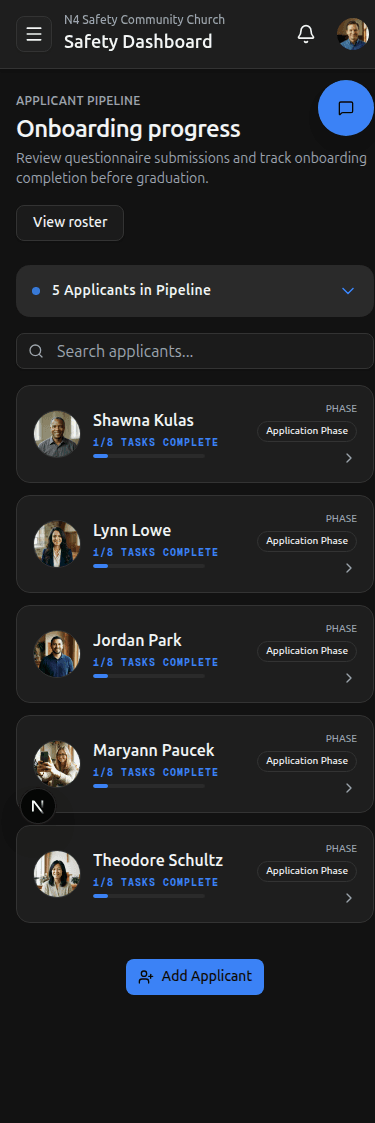
Pipeline Table
Below the summary cards, the pipeline table lists every active applicant with the following columns:
| Column | Details |
|---|---|
| Applicant | Name and email address |
| Contact | Phone number |
| Questionnaire | Status badge for the Member Application (Missing, Pending Review, Valid, or “Not configured” if no questionnaire requirement exists) |
| Onboarding | Progress shown as “X/Y complete” with a color-coded badge, plus a count of pending items. Displays “Awaiting setup” if no onboarding requirements have been configured |
| Actions | Review button to open the applicant’s profile |
Reviewing an Applicant
When you click “Review” on an applicant’s row, you are taken to their profile in the Roster. From there you can:
- View submitted application answers displayed in a clean two-column grid layout.
- Review uploaded documents — profile photos, certifications, or any other required files.
- Check policy acknowledgments — confirm the applicant has reviewed and signed all required policies.

Returning an Application
If an applicant’s Member Application needs revision, you can return it with feedback. This option is available when the questionnaire status is Pending Review.
- Open the applicant’s profile and locate their submitted application.
- Click “Return for Revision.”
- Provide a written reason explaining what needs to be corrected or clarified.
- The applicant is notified, and their questionnaire status resets to Missing.
The applicant’s previous answers are preserved — they will revise their existing responses rather than starting over. When they resubmit, an amber banner will be visible on the application indicating the prior return and the reason you provided.
Be specific when writing the return reason. A clear explanation helps the applicant address the issue quickly and reduces unnecessary back-and-forth.
Graduating an Applicant
Graduation is the final step in the onboarding process, promoting an applicant from the Applicant role to a full Safety Team Member with complete platform access.
Requirements:
- All onboarding items must have a Valid status before graduation is available.
- Only Organization Admin and Oversight roles can graduate applicants.
Process:
- Navigate to the applicant’s profile in the Roster (via the Review button in the pipeline, or directly from the Roster page).
- Confirm all onboarding items are marked Valid.
- Initiate the graduation from the applicant’s roster profile page.
Once graduated, the former applicant gains full access to the platform — scheduling, roster, bulletins, compliance, incidents, and all other features available to Safety Team Members.
Graduation is initiated from the applicant’s roster profile page, not from the pipeline table directly.
Inviting New Applicants
New applicants are invited through the “Create member” dialog on the Roster page:
- Navigate to the Roster and click “Create member.”
- Enter the applicant’s first name, last name, email, and phone number.
- An invite email is sent automatically to the applicant.
- The new applicant is assigned to the onboarding compliance track.
If you need to re-invite an existing applicant (for example, if they did not receive the original email), simply repeat the process — the platform will resend the invitation.
Role summary: Organization Admin, Oversight, and Coordinator can view the pipeline and review applicants. Only Organization Admin and Oversight can graduate applicants to full membership.
Next Steps
- Applicant Onboarding — Share this guide with your applicants so they understand the process from their perspective.
- Roster — Learn more about managing your Safety Team roster.
- Compliance — Understand how compliance tracks and requirements work across your organization.
- Adding a New Member — Detailed guide on the member creation process.
Need More Help?
© 2026 N4 Safety. All rights reserved.