Managing the Team on Duty
As a Squad Leader, Oversight leader, or Organization Admin, you have access to the Team On Duty view and additional post management tools. These give you real-time situational awareness of who has arrived, who is late, and how posts are covered.
Access: The /on-duty/team page is role-gated. Squad Leaders, Oversight/Leadership, and Organization Admins can access it when on duty or within an active duty window. Anyone with access sees all members currently assigned to the active duty window — there is no squad-based filter. A Squad Leader typically sees their own squad because that is who is scheduled on their duty day, but that is a result of the schedule, not a query filter. An Org Admin or Oversight member on duty may be assigned to a different squad entirely and will still see the full on-duty team.
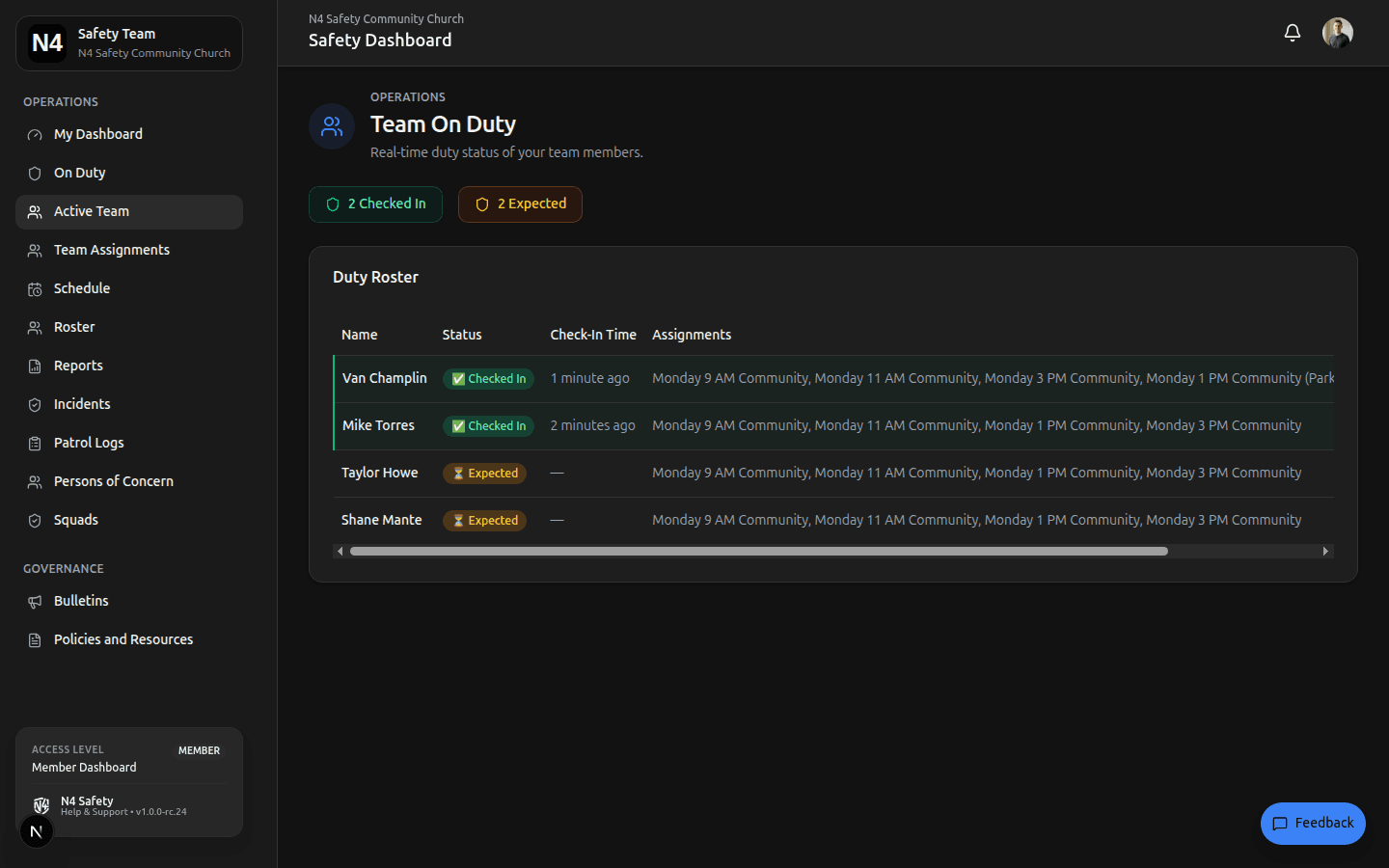
The Team Roster (Desktop)
Navigate to Team On Duty using the main sidebar.
On this screen, you will see a combined roster of:
- Members who are currently scheduled and expected to arrive in the next 12 hours.
- Members who are actively Checked In.
The list is sorted to show actively checked-in members at the top, allowing you to instantly determine your on-the-ground operational strength.
Mobile Layout
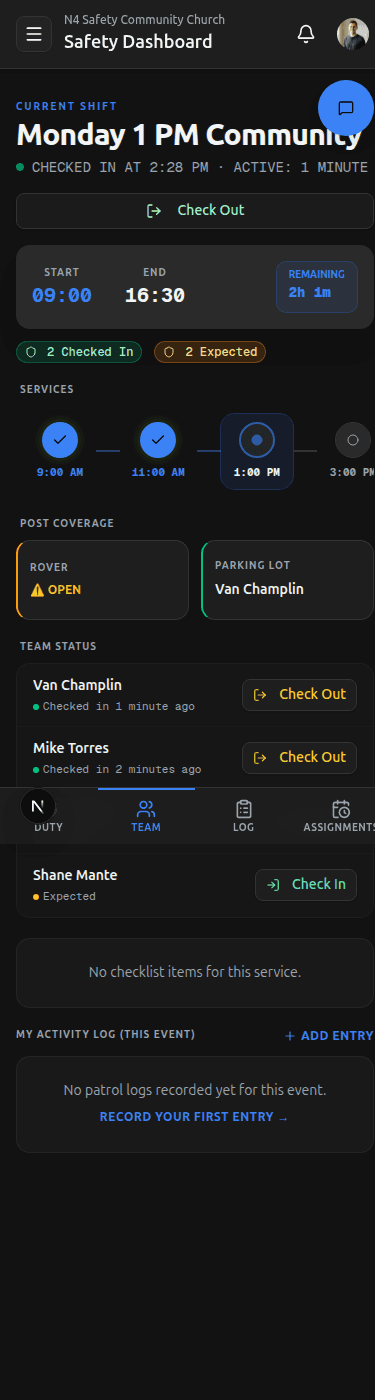
On mobile, the /on-duty/team route is accessible via the Team tab in the bottom navigation bar.
Screen Sections (Top to Bottom)
| Section | What You See |
|---|---|
| DutyHeader | Duty block label with a check-in counter (“X/Y Checked In”) reflecting real-time arrivals |
| ServiceStrip | Horizontally scrollable service-time pills (completed / active / upcoming) |
| CoverageGrid | A two-column grid of post cards — emerald background indicates a filled post; amber with “OPEN” label indicates an unfilled post |
| Team Check-In List | Roster of members showing check-in status, sortable by arrival time |
| ChecklistProgress | Phase-grouped progress bars showing Pre-Service / During / Post-Service task completion |
| PatrolLogFeed | Recent patrol log entries from the current session across all on-duty members |
Managing Post Assignments
When a post is OPEN (unfilled) or you need to adjust coverage, use the ManagePostSheet by tapping any post card in the CoverageGrid.
The sheet presents four actions:
| Action | What It Does |
|---|---|
| Assign | Select from the list of checked-in, unassigned members and assign them to this post |
| Reassign | Replace the current member on this post with another checked-in member |
| Swap | Two-tap swap: select the first post, tap Swap, then select the second post and confirm — the two members trade positions |
| Vacate | Remove the current member from this post; the post returns to OPEN status |
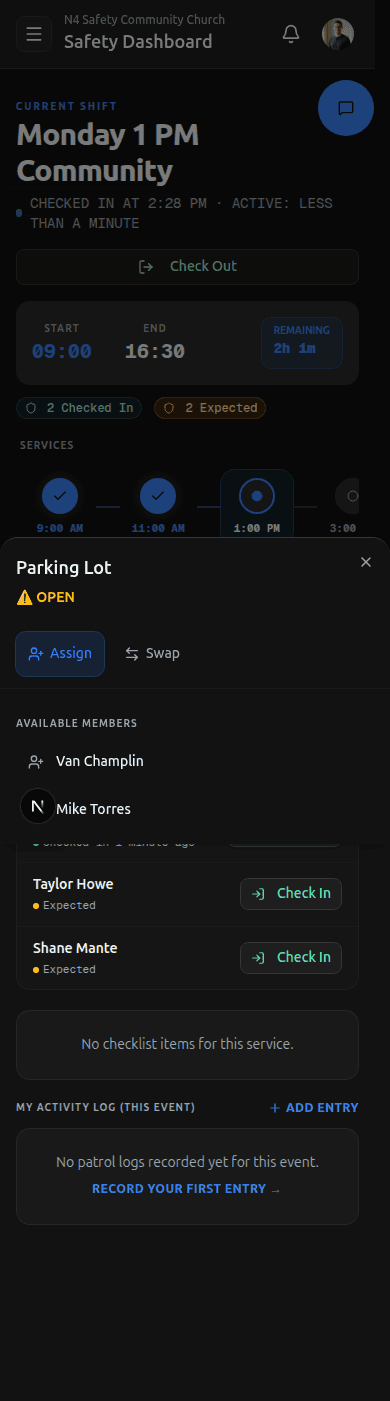
Post assignment changes are recorded in the audit log. The affected members will see their updated assignment reflected immediately on their own On-Duty screen.
Team Assignments Grid (/on-duty/members)
The Assignments tab (bottom nav) opens the read-only Team Assignments grid at /on-duty/members.
This view is available to any on-duty member, not just leaders. It shows:
- Rows — each member on the current duty roster
- Columns — each service slot in the duty block
- Cells — the post badge for that member’s assignment in that slot
Members who have checked in display an emerald left border and a green presence dot. Members who have not yet arrived are shown without a border indicator.
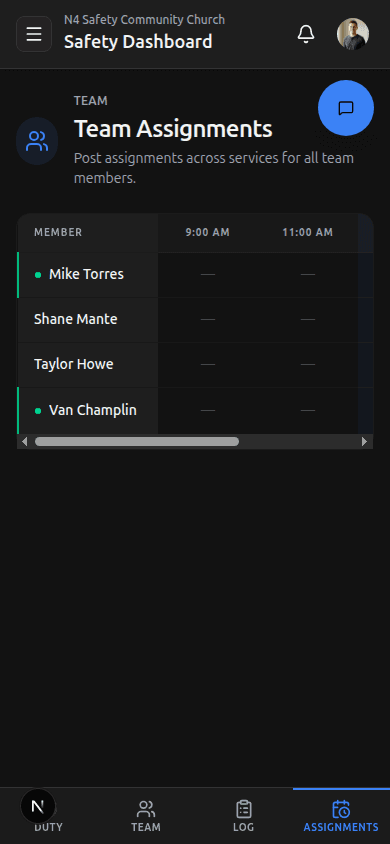
Use this view to quickly confirm who is covering which post without pulling up the full management interface.
Manual Check-In Overrides
Occasionally, a member may rush into action before remembering to tap Check In, or their phone battery may die during a shift.
Leaders can perform Manual Overrides to maintain an accurate audit log.
How to Check In a Member
Open the Team On Duty Roster
Navigate to the Team view from the sidebar (desktop) or the Team tab in the bottom navigation bar (mobile).
Locate the Member
Find the member under the “Expected” section.
Check Them In
Click or tap the Check In action beside their name and confirm.
Their row will immediately move to the top of the list marked as “Checked In.” When that member next opens the platform, their dashboard banner will be green and they will have access to the On Duty page.
How to Check Out a Member
If someone left at the end of their shift and forgot to end their session, find their name under the “Checked In” section and tap Check Out. Their assignment block will be formally closed and the audit log will note your intervention.
Need More Help?
© 2026 N4 Safety. All rights reserved.