Navigating the Dashboard
Your dashboard is the central hub for your ministry of protection. Here is a complete tour of what you will see when you log in.
Sidebar Navigation
The left sidebar is organized into sections. The items you see depend on your role — not every Safety Team Member sees every item.
Operations
| Item | Description | Visible To |
|---|---|---|
| My Dashboard | Your home screen with assignments, compliance, and action items | All roles |
| Command Center | Real-time operational overview | Oversight, Organization Admin |
| Schedule | View events, assignments, and shift coverage | Safety Team Member and above |
| On Duty | Active duty control panel for your current session | Members with an active or upcoming session |
| Roster | Browse all active Safety Team Members | Safety Team Member and above |
| Patrol Logs | Field observation logs for your current session and history | Safety Team Member and above |
| Applicant Pipeline | Track applicants through the onboarding process | Coordinator, Oversight, Organization Admin |
| Reports | Operational and compliance reports | Oversight, Organization Admin |
| Incidents | Report and review safety incidents | Safety Team Member and above |
| Persons of Concern | Track individuals flagged for safety awareness | Safety Team Member and above |
| Squads | View squad assignments and leadership | Safety Team Member and above |
Governance
| Item | Description | Visible To |
|---|---|---|
| Bulletins | Safety alerts and announcements from leadership | All roles |
| Policies and Resources | Required reading and reference materials | All roles |
| Acknowledgements | Manage policy acknowledgement requirements | Organization Admin |
Admin
| Item | Description | Visible To |
|---|---|---|
| Training | Training sessions and registration management | Oversight, Organization Admin |
| Feedback Inbox | Review submitted feedback from the team | Oversight, Organization Admin |
| Programs | Configure ministry programs | Organization Admin |
| Services | Manage service types and times | Organization Admin |
| Checklists | Configure onboarding and compliance checklists | Organization Admin |
| Posts & Zones | Define physical posts and coverage zones | Organization Admin |
| Schedule Config | Configure scheduling rules and parameters | Organization Admin |
| Compliance Admin | Manage compliance tracks and requirements | Organization Admin |
Role-Based Visibility: You will only see the sidebar items that apply to your role. If you do not see a section listed above, it means your role does not include access to that feature. This is by design — the platform shows each Watchman only what is needed for their stewardship.
Session-Gated Items: The On Duty, Active Team, and Team Assignments sidebar entries are hidden unless you have an active or imminent duty session. They appear automatically when you are within the check-in window for an upcoming assignment.
Safety Team Member Dashboard
When you log in as a Safety Team Member, your dashboard is organized into the following sections:
Page Header
At the top of your dashboard you will see “Stay ready for your next assignment” along with two quick-action buttons: View Schedule and View Compliance.
Action Required
This orange card appears when you have items that need your immediate attention. It includes:
- Unread bulletins — including any marked CRITICAL (displayed in red)
- Critical compliance items — certifications or requirements that are overdue
The badge on this card shows the total count of items needing action.
Policies Pending Review
This blue card lists non-blocking policy acknowledgements waiting for your signature. These are important but do not prevent you from accessing the platform.
Swap Inbox
If another Safety Team Member has sent you a shift swap request, or if there are open swap requests you can take, they appear here. You can Accept, Decline, or Take a swap directly from the dashboard.
Summary Cards
Three cards appear in a row giving you a quick snapshot:
- Upcoming Assignments — How many assignments you have in the next 30 days
- Readiness Status — Your current status (GREEN, YELLOW, ORANGE, or RED) with item counts
- Training Registrations — Your upcoming training sessions
Upcoming Assignments
A table showing your upcoming scheduled assignments with columns for Event, Post, Time, and Status. You can click Request Swap on any assignment if you need coverage.
My Compliance
Displays the top four compliance items needing your attention, so you can quickly see what to address first.
My Training
Lists your upcoming training sessions along with your registration status for each.
Applicant Dashboard
If you are an Applicant going through the onboarding process, you will see a completely different dashboard.
Your dashboard displays “Applicant Onboarding” with a welcome message and three summary cards:
- Remaining — Steps you still need to complete
- Pending Review — Steps you have submitted that are awaiting approval
- Completed — Steps that have been approved
Below the summary cards, you will see an interactive onboarding steps checklist. Each step shows its current status (Missing, Pending Review, or Valid), and you can click into each step to take the required action.
Applicants: Your sidebar only shows a single item — your onboarding dashboard. Once your Organization Admin promotes you to Safety Team Member, you will gain access to the full sidebar and dashboard described above.
Mobile Dashboard
On mobile-sized screens (md:hidden), your dashboard displays a purpose-built layout in place of the desktop card grid. The desktop layout is unchanged for users on larger screens.
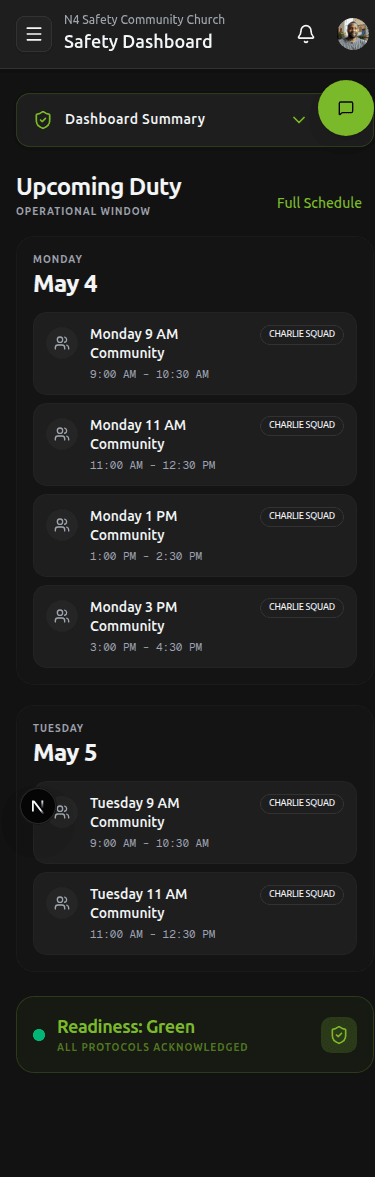
The mobile dashboard is organized into the following sections, top to bottom:
| Section | What You See |
|---|---|
| DutyCheckInBanner | Appears when you have an upcoming or active duty session — tap to check in or go to the On Duty page |
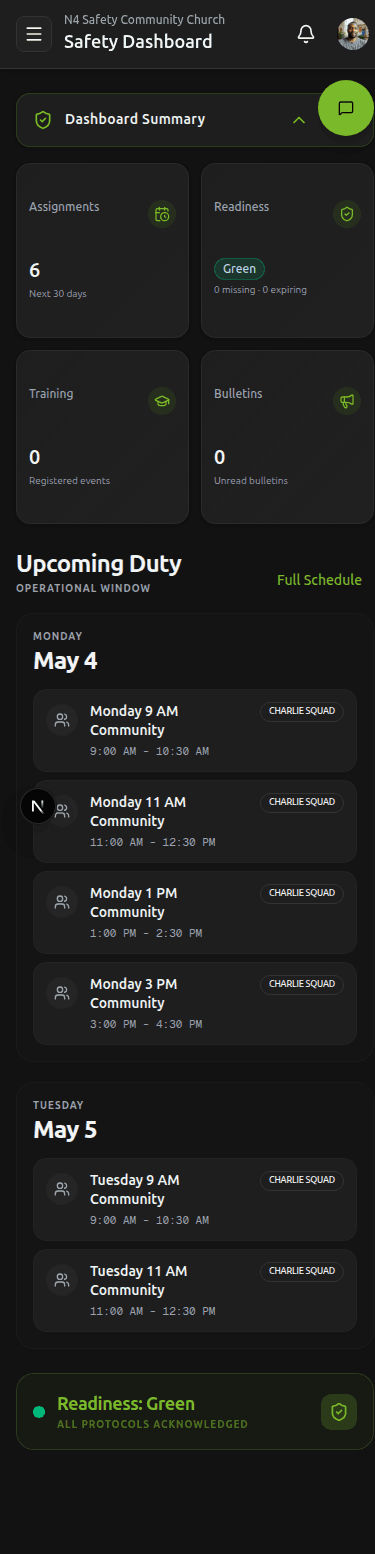
| Dashboard Summary | Collapsible 2×2 grid: Upcoming Assignments, Readiness Status, Training, and Bulletins counts |
| Action Required | Rows for items needing your immediate attention — Critical bulletins display a red left stripe, compliance items display amber |
| Policies Pending | Rows for policy acknowledgements awaiting your signature, shown with a blue left stripe |
| Swap Inbox | Incoming swap requests you can Accept, Decline, or Take |
| Upcoming Duty | Your upcoming assignments grouped by day, displayed in your organization’s configured timezone |
| Readiness Banner | A pulsing banner reflecting your current readiness status — tap to go directly to /compliance |
| My Training | Collapsible list of your upcoming training registrations |
Theme
The platform uses Dark Mode by default to reduce visual exposure in low-light sanctuary environments. This cannot be changed.
Next Steps
Continue to Understanding Your Status to learn what the color indicators mean.
Need More Help?
© 2026 N4 Safety. All rights reserved.